
Provider Exchange
Contribute idle CapSolver, 2Captcha or Anti-Captcha keys and earn your chosen share of every task they solve, paid as AnySolver balance or crypto.
Provider Exchange lets you earn from unused balance on supported providers such as CapSolver, 2Captcha and Anti-Captcha. When a contributed key solves a customer's task, you earn your chosen share of its final cost. Convert earnings to AnySolver balance from $0.10 or withdraw crypto from $10 through a support ticket.
How it works
You add a provider API key, and AnySolver verifies it against the provider's balance API. A verified key is ACTIVE: it joins the pool of keys that customer tasks for that provider run on, unless the customer's API key uses platformOnly. Each solve consumes balance on your provider account, paid for by the customer who submitted the task.
For each task, AnySolver first draws a contributor (see How a contributor is picked), then one of that contributor's keys at random. AnySolver's own keys are used only when no contributor's key could take the task.
When a task solved on your key is finally charged, your frozen balance is credited with the task's final cost times your chosen share. A failed task earns nothing, even when the customer was charged for it.
Add your keys
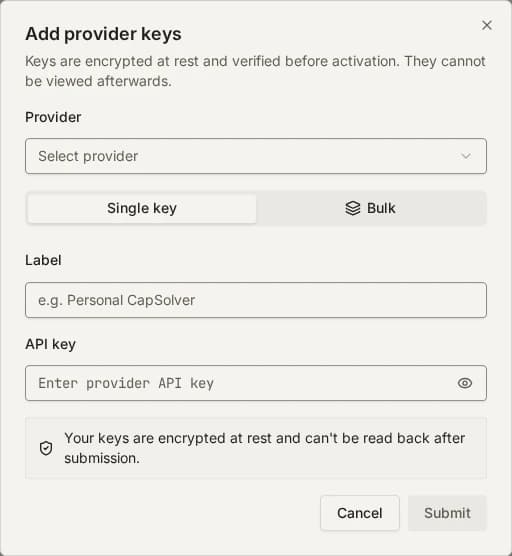
Open Keys and click Add keys. Pick a provider from the list. Only providers that support balance checks appear. The choice applies to both tabs. Store a copy of each key somewhere you control before you submit it: AnySolver never shows a key again. A key an organization uses as its own provider key cannot be contributed, and is refused as already submitted.
Keys are write-only
Keys are encrypted at rest and never shown again after submission. Store a copy somewhere you control before you submit.
Single key
On the Single key tab, give the key a label, paste it, and submit.
Bulk
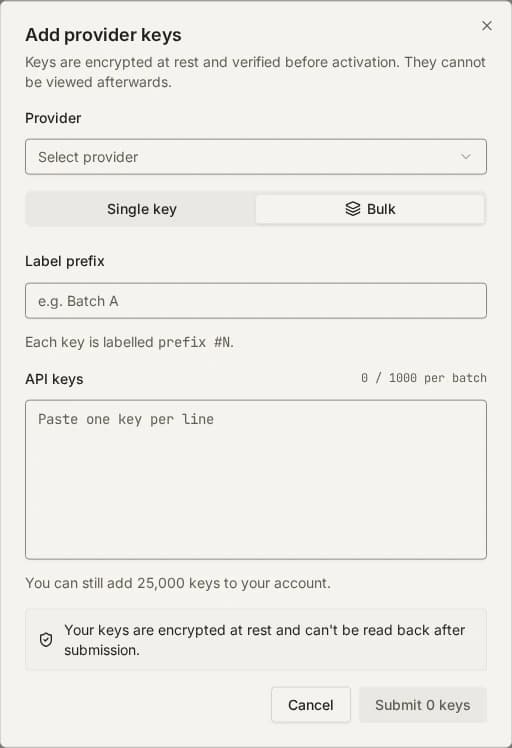
On the Bulk tab, set a Label prefix and paste up to 1,000 keys, one per line. Each key is labelled with the prefix and its number, for example prefix #1 and prefix #2.
New keys show as PENDING while AnySolver verifies them, and turn ACTIVE within seconds when the provider accepts them. A key whose provider balance is below twice the price of that provider's most expensive task fails verification and shows as FAILED.
Providers that check keys first
Some providers block AnySolver's shared IP when it sends many invalid keys. For those providers (currently Anti-Captcha), AnySolver checks your keys before and during verification:
- A key that cannot be valid is refused when you submit it, and counted as
invalid formatin a bulk submission. Anti-Captcha keys are 32-character hexadecimal strings. - Your keys are verified one at a time. Once 3 of them fail verification within 24 hours, your remaining pending keys for that provider are marked
FAILEDwithKEY_VERIFICATION_LIMITEDinstead of being sent. Remove the keys that do not work, then revalidate the rest after 24 hours.
Pick your earning strategy
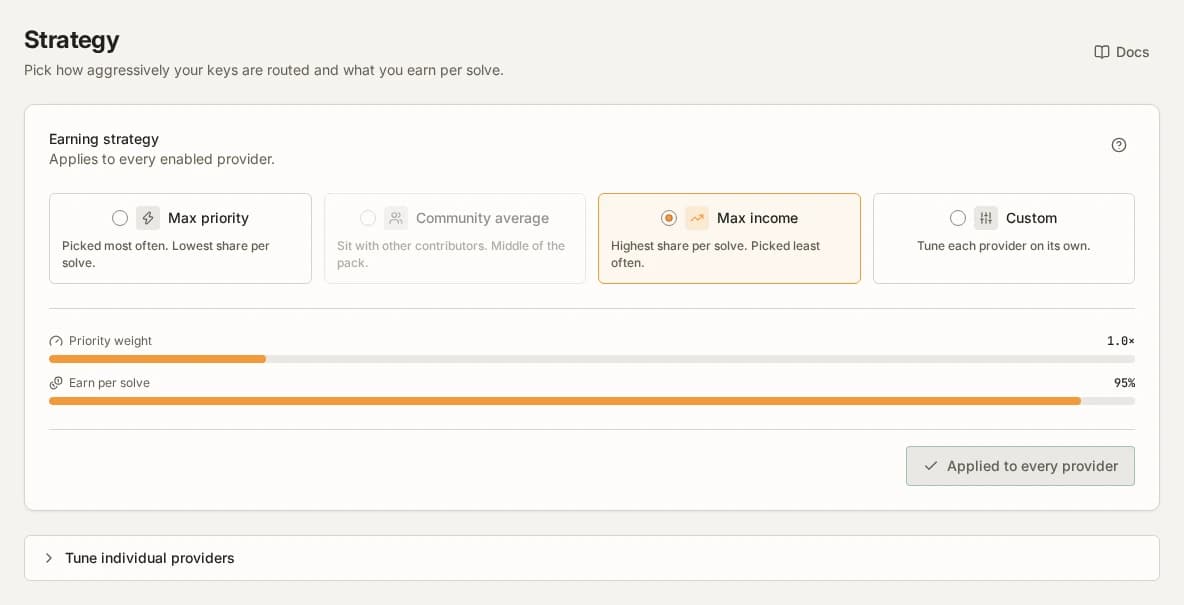
On the Strategy page, set how strongly your keys compete for traffic. A preset applies to every enabled provider; tune single providers under Tune individual providers.
| Preset | Share you choose | Priority weight | Pick it when |
|---|---|---|---|
| Max priority | The lowest share in the range | 5.0× | You would rather solve 100 tasks at a low margin than 10 at a high one |
| Community average | The average share other contributors chose | Between the two | You want a steady share of traffic |
| Max income | The highest share in the range | 1.0× | Only high-margin solves matter, at lower throughput |
| Custom | Your own share per provider | Depends on the share | You want, for example, max priority on 2Captcha and max income on CapSolver |
Until you choose, a provider uses the highest share in its range.
How the priority weight works
Every provider has a payout range that AnySolver sets, 80% to 95% by default; it can differ per provider and task type. Your chosen share inside that range maps to a priority weight from 1.0× at the top of the range to 5.0× at the bottom:
priority = 1 + 4 × (max − chosen) / (max − min)
The weight tilts the draw; it does not exclude anyone. A provider with a fixed payout (minimum equal to maximum) has no weight to trade, and every contributor draws at 1.0×.
How a contributor is picked
When a task arrives for a provider, AnySolver picks a contributor with a weighted random draw:
- Every contributor with an
ACTIVEkey for that provider is in the draw. Nobody is excluded for choosing a high share. - Each contributor has one entry per provider, weighted by their priority weight.
- Adding more keys improves your uptime (fewer gaps while a key is
EXHAUSTED), not your entries.
A contributor with one key and a contributor with a thousand keys compete on the same share axis, so volume contributors do not drown out smaller ones.
Key lifecycle
A key moves between six states. Only an ACTIVE key is used for tasks and earns:
| Status | What it means | What to do |
|---|---|---|
PENDING | Being verified against the provider's balance API | Wait; it settles within seconds |
ACTIVE | Verified and in the pool | Nothing |
EXHAUSTED | The provider balance is too low for the provider's most expensive task | Top up at the provider; the key comes back on its own |
FAILED | The provider rejected the key, or AnySolver refused to send it | Fix the cause, then click Revalidate |
DISABLING | Deactivated while tasks still run on it | Wait; it turns INACTIVE when they finish |
INACTIVE | Deactivated, or stopped by a total spend limit | Click Enable to verify it again |
The Keys page filters keys by status and provider. Its tabs map to statuses as follows: Active is ACTIVE, Pending is PENDING, Needs attention is EXHAUSTED and FAILED, and Inactive is INACTIVE. A DISABLING key appears only under All.
Details in a key's action menu shows when the key was added, when it entered its current status, when it was last checked and last used. For a key that needs attention, it also shows the error code and description that took it out of the pool, the same codes task results use, such as ERROR_KEY_DOES_NOT_EXIST or ERROR_IP_NOT_ALLOWED.
When a key is EXHAUSTED
AnySolver checks the balance of every ACTIVE key regularly. When a check finds the balance below the price of the provider's most expensive task, the key turns EXHAUSTED. Routing stops using it, because the provider could refuse a task sent to it. AnySolver rechecks an EXHAUSTED key every minute at first, backing off to once an hour, and returns it to ACTIVE once the balance covers twice that price. To skip the wait after a top-up at the provider, click Revalidate.
An EXHAUSTED key whose recheck finds the provider rejecting it turns FAILED.
When a key is FAILED
The provider rejected the key as invalid, banned or unsupported. Check the key on the provider's site; if it works there, click Revalidate and it is verified again.
Two failures come from AnySolver itself, and the key was never sent to the provider: KEY_FORMAT_INVALID (the key cannot be a key for that provider) and KEY_VERIFICATION_LIMITED (too many of your keys for that provider failed verification recently). A KEY_FORMAT_INVALID key fails again until you replace it; a KEY_VERIFICATION_LIMITED key can be revalidated once the 24-hour window has passed. Providers that check keys first explains both.
A FAILED or EXHAUSTED key that nothing changes for 30 days is removed.
Deactivate or remove a key
Deactivate in a key's action menu stops new tasks on it. Remove deletes it. Neither stops a running task: a key with tasks in flight turns DISABLING until they finish, then becomes INACTIVE, or is deleted if you removed it.
Spend limits on a key
If you use the same provider key yourself, cap how much the exchange spends from it. In the key's action menu, choose Spend limits and add up to five limits, each an amount in USD per period: for example $20 every 1 day and $100 every 2 weeks. A period is a whole number of hours, days or weeks, up to 90 days. Choose in total instead of a period to cap all spend on the key: for example, $50 in total sells about that much and then stops.
- Periods are fixed UTC windows that run back to back: a day starts at midnight UTC and a week on Monday at 00:00 UTC.
- A limit counts the settled cost of every task the key handles, solved or failed, unless the task is refunded. The cost counts in the window in which the task settles. Counting starts when you add the limit, so spend from earlier in the period is not included.
- Once any period limit is reached, routing skips the key until that window ends. The key stays
ACTIVE. - When the total limit is reached, the key is deactivated with
SPEND_LIMIT_REACHED, turnsDISABLING, and becomesINACTIVEonce its running tasks finish. Enable starts a new total, and so does removing the total limit and adding it back. - Tasks already running when a limit is reached still finish, so spend can pass the limit by the cost of those tasks.
Frozen balance and payouts
Earnings collect in a separate frozen balance, shown on the Earnings page next to your lifetime total. A reward is the task's final cost, after any correction, times your share; it is credited once that cost is final.
Open Convert or withdraw under the frozen balance on that page to take earnings out:
| Option | Minimum | How it works |
|---|---|---|
| Convert to Balance | $0.10 | Instant: moves all or part of the frozen balance into your AnySolver balance |
| Withdraw as Crypto | $10 | A support ticket; paid out manually in USDT on BNB Smart Chain (BEP20), network fees excluded |
Converting is permanent: converted funds can only be spent on tasks and can no longer be withdrawn as crypto. The conversion appears in your billing history as a CONVERSION_IN transaction. A crypto payout supports only USDT on the BEP20 network; give the wallet address in the ticket. If you withdraw part of your frozen balance as crypto, the remainder moves to your AnySolver balance.
Your dashboard
Open Earnings to see your frozen balance and lifetime earnings. Use Convert or withdraw to move funds.
| View | What it shows |
|---|---|
| Earned and Rewarded tasks | Earnings, the previous period's earnings and the number of rewarded tasks |
| Active keys | How many keys are active now and whether any need attention |
| Earnings over time | Daily earnings, with an optional line per provider |
| By provider | Each provider's share, rewarded task count and earnings |
| Keys | Working keys and keys needing attention, by provider |
| Recent rewards | Your latest rewards, or Add your first key if you have not contributed one |
Choose the last 24 hours, 7 days or 30 days. The page defaults to 7 days and keeps the selected period in its address.
Account limits
- 25,000 contributed keys per user, across all providers. Own provider keys belong to the organization and have a separate limit.
- 1,000 keys per bulk submission.
- Removed keys do not count toward the 25,000.
Privacy and platform-only routing
With keyPoolMode all, the default, a customer's task can run on a contributor's key. A customer opts out per API key, by setting Key pool to Platform only under Advanced settings in the key's Edit dialog, or per request with settings.routing.keyPoolMode: "platformOnly" on createTask; the request value wins. Those tasks run only on AnySolver's own keys and never touch the exchange pool. Key pool mode shows the setting.
Your provider still charges you
Provider Exchange pays you for balance you already bought. Every solve on your key consumes balance on your provider account, and top-ups go through the provider as usual.
Related
Bring your own keys (BYOK)
Run AnySolver tasks on your own CapSolver, 2Captcha or other provider keys with the same API, routing and fallback, and a fee only past a free allowance.
Overview
The base URL, API key authentication, JSON response envelope, errorId values and rate limits that every AnySolver API endpoint shares, with examples.